










Updated August 2026
Google Slides dark mode works differently on desktop and mobile.
The Android and iPhone or iPad apps include a dark interface. The Google Slides web editor does not offer the same built-in setting. On Windows, Mac, or Chromebook, Night Eye can make the editor dark in a supported browser.
Night Eye changes only what you see in your browser. It does not rewrite the presentation, change its background for collaborators, or alter the exported file.
If you want the slides themselves to use a dark design, skip to how to make the actual slides dark.
Google Slides dark mode: Quick answer
| Platform | Native dark mode? | Best method |
|---|---|---|
| Google Slides on Windows | No built-in web setting | Use Night Eye in a supported browser |
| Google Slides on Mac | No built-in web setting | Use Night Eye in a supported browser |
| Chromebook | No equivalent Slides web setting | Use Night Eye where extensions are permitted |
| Android app | Yes | Change the theme in the Slides app |
| iPhone or iPad app | Yes | Change the theme in the Slides app |
| Presentation background | Separate feature | Change the slide background or presentation theme |
Darkening the Slides interface does not permanently change your presentation. If you want the exported or presented slides to have a dark design, change the slide background or presentation theme instead.


Does Google Slides have dark mode?
Google Slides has a native dark interface in its Android and iOS apps. The desktop web editor does not currently offer an equivalent built-in dark-mode switch. Desktop users can use a browser extension such as Night Eye.
These three settings do different jobs:
- Dark interface: Changes menus, toolbars, and the editing environment.
- Dark viewing experience: Changes how Slides appears only in your browser or app.
- Dark presentation: Changes the actual slide background and content colors for everyone who views the file.
How to make Google Slides dark on a PC or Mac
- Install Night Eye from your browser's official extension store.
- Open Google Slides.
- Open an existing presentation or create a new one.
- Select the Night Eye icon in the browser toolbar. If it is hidden, open the browser's extensions menu and pin Night Eye.
- Select Dark. If the open Slides tab does not update, reload it once.
The change is local to your browser. It does not alter the shared presentation or the view seen by collaborators who are not using Night Eye.
Choose your browser below to install Night Eye for Chrome, Edge, Firefox, or Safari.


How to enable Google Slides dark mode in Chrome
- Install Night Eye from the Chrome Web Store using the browser chooser above.
- Open Chrome's Extensions menu and pin Night Eye if its icon is hidden.
- Open Google Slides.
- Open Night Eye and select Dark.
- Reload Slides if a tab that was already open does not update.
Changing Chrome's appearance to Dark affects the browser's tabs, toolbar, menus, and settings. It does not automatically make the Google Slides editor dark.
How to use Google Slides dark mode on Chromebook
Google Slides normally runs as a website on a Chromebook. ChromeOS can use a dark system theme, but that does not guarantee a fully dark Slides editor.
- Open the Chrome Web Store and install Night Eye.
- Open or reload Google Slides.
- Open Night Eye and select Dark.
School-managed or workplace-managed Chromebooks may prevent users from installing extensions. If installation is blocked, contact the administrator rather than trying to bypass the device policy.
Google Slides dark mode in Edge, Firefox, and Safari
Night Eye is also available for Microsoft Edge, Firefox, and Safari.
- Use the browser chooser above to open the correct official extension store.
- Install Night Eye and open Google Slides.
- Select the Night Eye icon and choose Dark.
- Reload the page if Slides was already open during installation.
These steps change the browser-based editor only. They do not change the presentation file.
How to turn on Google Slides dark mode on Android
- Open the Google Slides app on your Android phone or tablet.
- At the top left, tap Menu.
- Tap Settings.
- Tap Choose theme.
- Select Dark. You can also choose Light or System default.
The app theme changes your own view. Collaborators cannot see the theme you choose. Google documents a light-theme preview for Docs and Sheets, but not for Slides, so do not rely on that option when checking a presentation's colors.
See Google's current Android dark-theme instructions.
How to turn on Google Slides dark mode on iPhone or iPad
- Open the Google Slides app.
- At the top left, tap Menu.
- Tap Settings.
- Tap Theme.
- Select Dark. Choose System default if you want Slides to follow the device appearance.
This changes the app's appearance for you; it does not change the shared presentation or the view seen by collaborators.
See Google's current iPhone and iPad dark-theme instructions.
How to make the actual slides dark
Use this method when you want a dark presentation design, not only a dark editing interface.
- Open the presentation on a computer.
- Select the slide you want to change.
- Choose Slide → Change background.
- Select a dark background color.
- Choose Done for the selected slide or Add to theme for the full presentation.
Changing a slide's background is not the same as enabling interface dark mode. It changes the presentation file and may affect everyone who views it.
After changing the background, check the contrast of text, icons, charts, links, and images on every slide. See Google's official guide to themes, backgrounds, and layouts in Google Slides.
How to turn Google Slides dark mode off
- Night Eye: Open Night Eye and select Normal for Google Slides. This restores the website's original appearance.
- Android: Open Menu → Settings → Choose theme, then select Light or System default.
- iPhone or iPad: Open Menu → Settings → Theme, then select Light or System default.
- Dark slide background: Choose Slide → Change background, then select a light color or reapply the presentation's original theme.
Google Slides dark mode troubleshooting
The Night Eye icon is missing
Open your browser's extensions menu and pin Night Eye to the toolbar. Also confirm that the extension is installed and enabled.
Google Slides stays light after installation
Reload the tab, open Night Eye, and confirm that the current site is set to Dark, not Normal. Temporarily disable another appearance extension if both are trying to recolor the page.
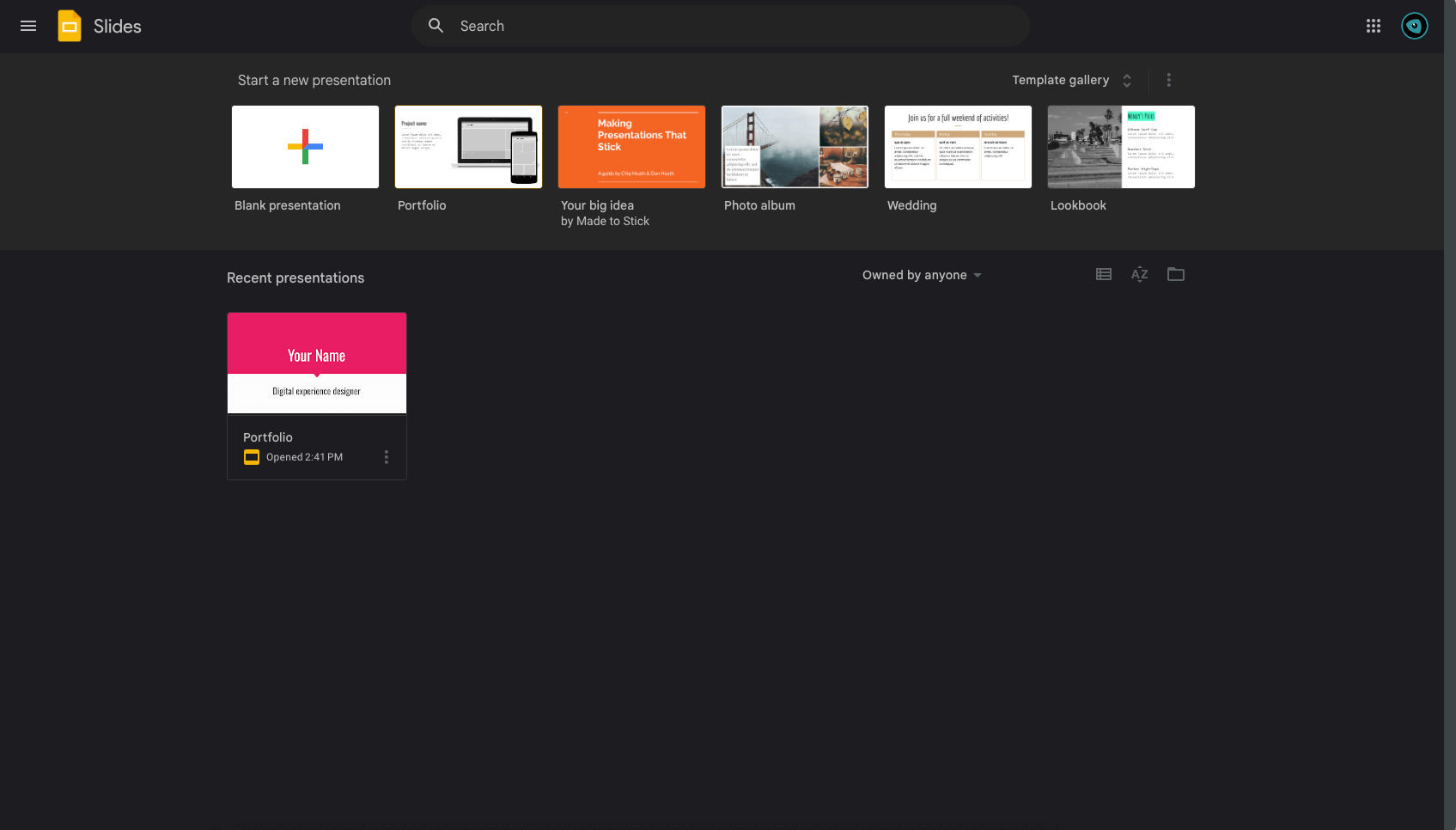
The Slides home page is dark, but the editor is not
Open a presentation, confirm that Night Eye is enabled for the editor page, and reload that tab. Different Slides pages can load separate interface elements.
The menus are dark, but the slide canvas is still white
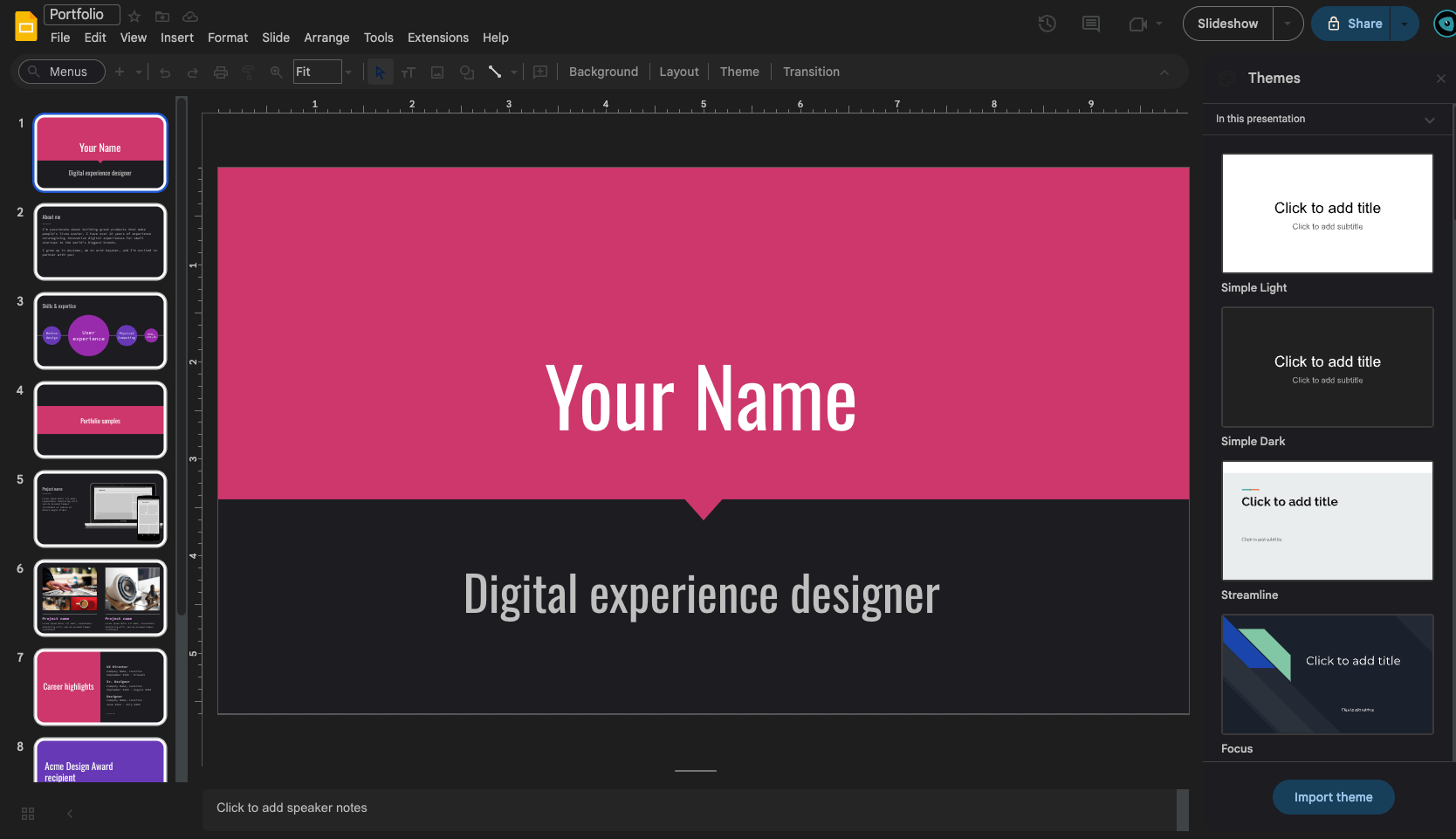
This is usually expected. The canvas shows the presentation's actual background, while Night Eye changes the surrounding editor. Use Slide → Change background only if you want to edit the file itself.
A chart, image, icon, or color looks incorrect
Switch the site to Normal temporarily before presenting, exporting, or making a color-sensitive decision. If a converted element still looks wrong, report the exact Slides page through Night Eye support.
Presentation mode looks different from editing mode
The slideshow can open in a separate page or full-screen view. Confirm Night Eye's mode on that page, or use Normal when the presentation's original colors must be exact.
The mobile app stays light or changes unexpectedly
Return to the app's theme setting. If System default is selected, Slides follows the device appearance; choose Dark or Light for a fixed app theme.
A managed Chromebook blocks the extension
The organization controls extension installation. Ask the administrator whether Night Eye can be approved for the device.
When a dark interface may be useful
A dark interface can feel more comfortable in a dim room or simply match the appearance you prefer on other apps and websites. Because presentation colors remain important, switch to Normal before presenting or exporting if any element looks unclear.
Video: How to enable Google Slides dark mode with Night Eye
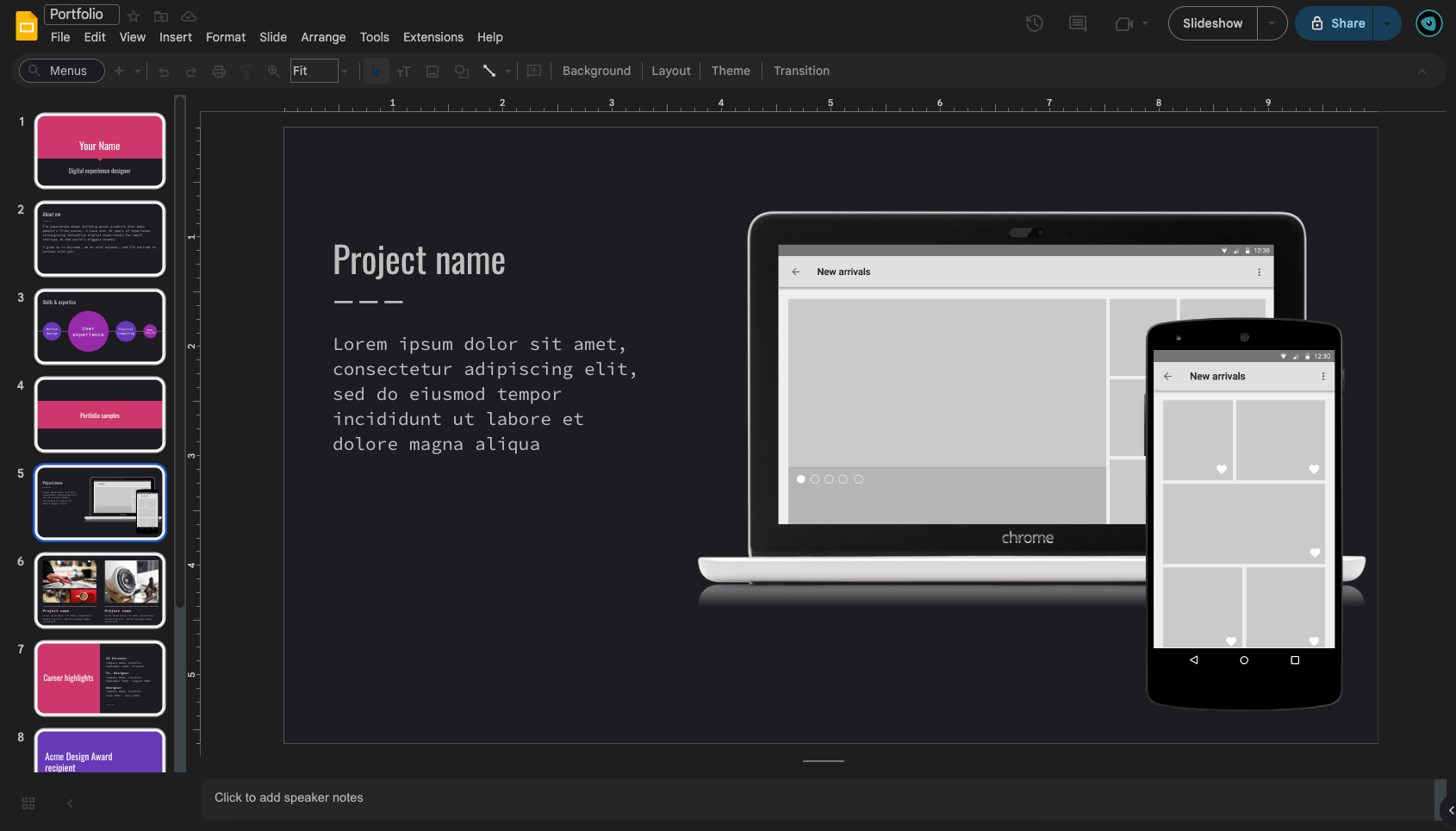
Google Slides with Night Eye enabled
Google Slides dark mode FAQ
Reviewed by the Night Eye team, developers of the Night Eye browser extension. Updated August 2026.