










Does TikTok have dark mode? Yes. TikTok has a built-in dark appearance for its iPhone app and website on desktop. On Android, the setting may not be available in every app version or on every device, so check your own app before following a tutorial. You do not need an extension to use TikTok's built-in desktop theme. If you want more control over how the TikTok website looks, Night Eye is an optional browser extension.
Jump to: iPhone | Android | PC and browser | Customize with Night Eye | Missing setting
How to turn on TikTok dark mode on iPhone
- Open the TikTok app and tap Profile.
- Tap the menu (☰) in the upper-right corner.
- Choose Settings and privacy.
- Open Display or Dark mode (the label and grouping may vary by app version).
- Select Dark. Choose Light to return to the light theme.
If your version offers Use device settings, turn it on to let TikTok follow your iPhone's appearance. Set that appearance at iPhone Settings → Display & Brightness → Dark, or configure automatic appearance there. When device matching is enabled, changing the iPhone theme can also change TikTok's theme.
How to get TikTok dark mode on Android
Android availability varies. TikTok's published dark-mode guidance has not consistently documented a universal Android app setting. Do not assume every Android phone has the same menu.
- Update TikTok through Google Play, then open the app.
- Tap Profile → menu (☰) → Settings and privacy.
- Look for Display or Dark mode. If it appears, open it and select Dark.
- If the option is missing, you can try your phone's Settings → Display → Dark theme. This changes Android's system appearance but does not guarantee that the TikTok app will switch themes.
Night Eye is a browser extension, not a theme switch for the native Android TikTok app. If you access tiktok.com in a supported browser, browser-based appearance options are separate from the Android app's settings.
How to enable TikTok dark mode on PC or Mac
TikTok's website has a built-in dark mode in supported desktop browsers, whether you are signed in or browsing without an account.
When signed in
- Visit tiktok.com in your desktop browser.
- Click your profile picture to open the account menu.
- Turn on the Dark mode switch.
When signed out
- Visit tiktok.com.
- Open More options (the three-dot menu; its location can vary with the page layout).
- Turn on Dark mode.
To go back, use the same menu to turn Dark mode off. If the control is not visible, check whether you are signed in, refresh the page, or inspect the other menu.
Customize TikTok's website dark mode with Night Eye
TikTok's native switch changes between light and dark appearances. Night Eye is an optional alternative for customizing the TikTok website, with controls such as brightness, contrast, saturation, dimming, and blue-light adjustments. Night Eye runs in your browser and does not change the native TikTok iPhone or Android app.
- Install Night Eye for your browser from the official Night Eye website. Night Eye supports Chrome, Safari, Edge, Firefox and other supported browsers.
- Open tiktok.com. If the tab was already open during installation, refresh it.
- Open Night Eye from the browser toolbar and choose Dark to use Night Eye's conversion. You can also switch to Filtered or Normal.
- Adjust brightness, contrast, saturation and dimming to suit the website's appearance. Check both the video feed and an individual video's comments after making changes.
For the most predictable appearance, avoid stacking two different dark-theme conversions. If TikTok's native dark theme is already on, compare the result with it switched off before using Night Eye's own dark conversion. Night Eye processes page appearance locally and does not collect your browsing history for conversion.
Night Eye browser screenshots
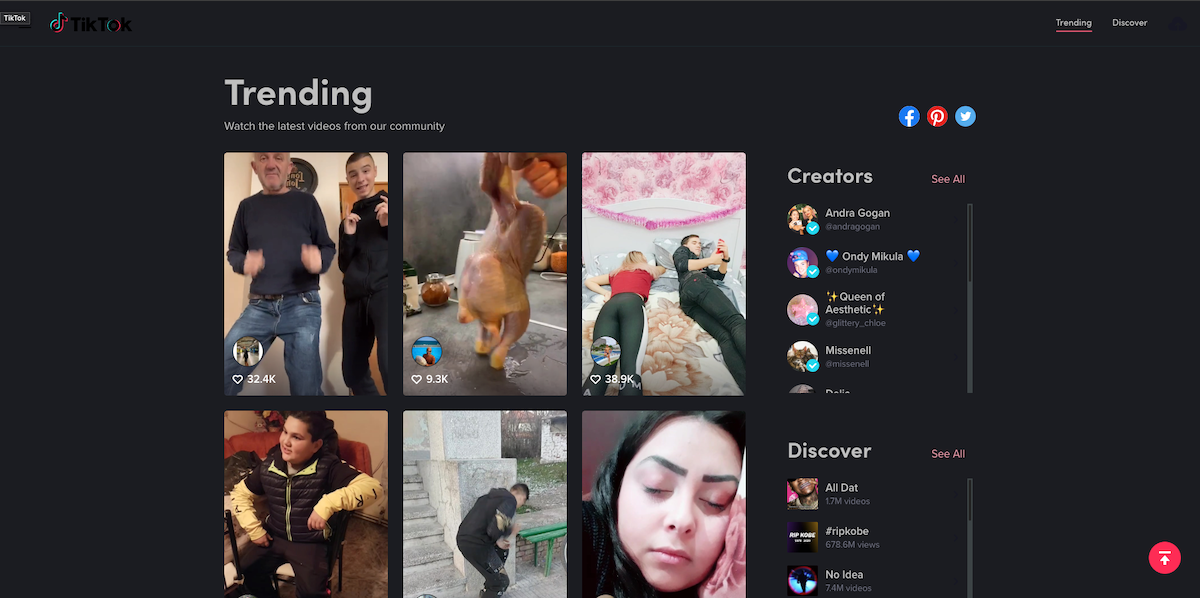
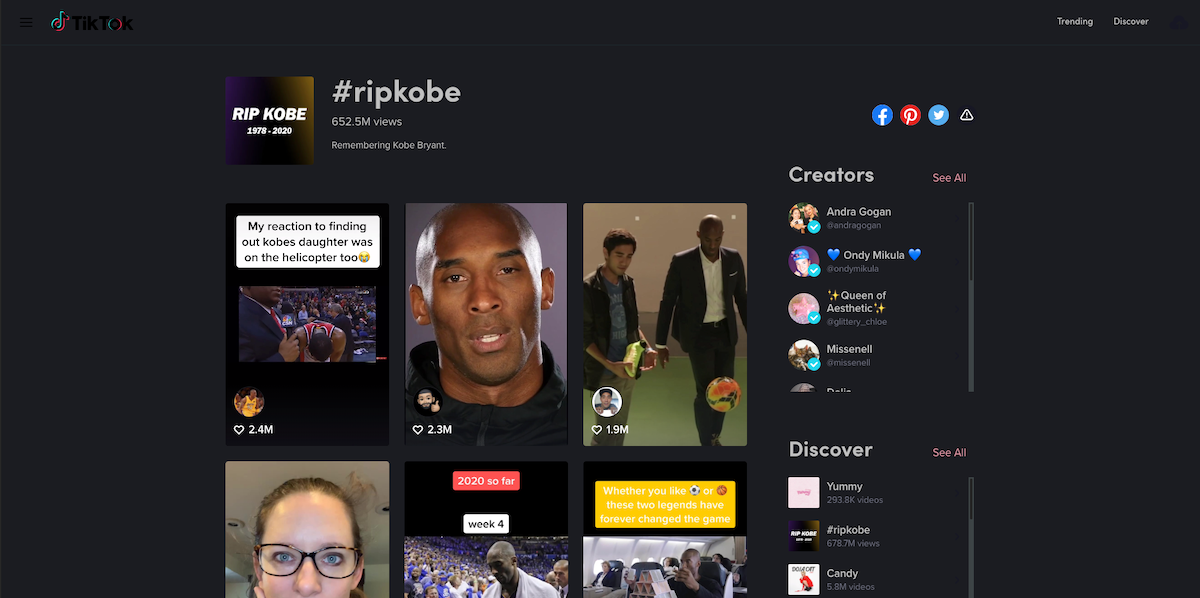
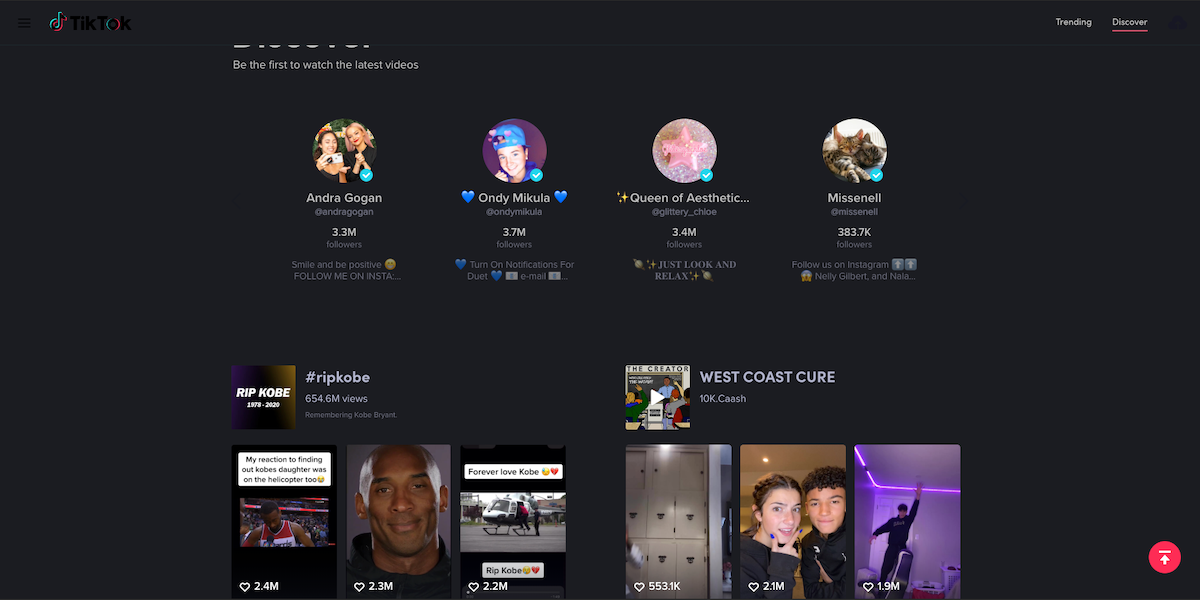
The four screenshots below are older examples of TikTok's website with Night Eye, retained from the original article. They are not current screenshots of TikTok's native desktop toggle or mobile settings. TikTok's interface may look different today.
Why don't I see the TikTok dark mode setting?
- Android: The native option may not be available in your current TikTok build or on your device. An Android system dark theme does not ensure TikTok will match it.
- iPhone: Update TikTok and check Profile → menu → Settings and privacy for Display or Dark mode. Labels can move between releases.
- Desktop website: Signed-in users should check the profile menu; signed-out users should check More options. Reload the page if necessary.
- Browser vs. app: A browser extension modifies supported web pages. It cannot enable dark mode inside the installed TikTok mobile app.
What changes when TikTok dark mode is enabled?
Dark mode changes TikTok's interface backgrounds and text colors to create a darker viewing experience. The videos themselves keep their original appearance. It is a visual preference, not a guaranteed way to prevent eye strain, protect eyesight, or change the colors inside videos.
Frequently asked questions
Does TikTok have dark mode on PC?
Yes. On tiktok.com, use the profile menu when signed in or More options when signed out, then switch on Dark mode.
Can I make TikTok dark mode follow my iPhone?
Yes, when Use device settings is available in TikTok's appearance settings. Set your preferred iPhone appearance in Settings → Display & Brightness.
Is TikTok dark mode available on every Android phone?
No universal Android app menu can be guaranteed. Check the current TikTok app's Settings and privacy menu and keep the app updated.
Can Night Eye change the TikTok mobile app?
No. Night Eye customizes supported pages in browsers, including TikTok's website; it does not alter the native TikTok app.
Official reference: TikTok Help Center: Dark mode.
Table of contents