








How to enable Yahoo dark mode on desktop
Want a dark Yahoo homepage or darker Yahoo Search results in your browser? Night Eye lets you apply and customize dark mode on supported Yahoo web pages in Chrome, Safari, Edge, Firefox and other supported browsers. You do not need to change Yahoo account settings to use it.
- Install Night Eye. Visit the official Night Eye download page, select your browser and add the extension from its store. In Safari, enable the extension in Safari Settings > Extensions and allow access to Yahoo websites.
- Open Yahoo. Visit yahoo.com for the homepage or search.yahoo.com for search results. If Yahoo was already open when you installed Night Eye, refresh the tab.
- Enable Dark mode. Night Eye normally starts in Dark mode automatically. To check, select the Night Eye icon in your browser toolbar and choose Dark. You can pin the icon from your browser's extensions menu.
- Customize the appearance. Open Night Eye again to fine-tune brightness, contrast, saturation, dimming and blue-light/warmth controls. Save settings for Yahoo without changing the appearance of your other websites.
For a quick comparison, switch Night Eye between Normal (Yahoo's original appearance) and Dark (Night Eye's conversion). Filtered preserves the original page colors while allowing display adjustments. See the Night Eye setup guide for browser-specific help.
Table of contents
- How to enable Yahoo dark mode on desktop
- Customize Yahoo's dark theme with Night Eye
- Yahoo homepage and search results: what changes?
- Yahoo dark mode screenshots
- Yahoo News and Yahoo Sports dark mode
- Yahoo Fantasy dark mode on desktop
- Dark mode in other Yahoo services
- Yahoo dark mode: frequently asked questions
- Get customizable Yahoo dark mode
Customize Yahoo's dark theme with Night Eye
The main advantage of Night Eye is control over how Yahoo looks, not just switching between a fixed light and dark theme. Use its sliders to make text and page backgrounds more comfortable for your preferences, and switch an individual Yahoo page back to Normal if needed.
Settings can be applied to the current website, with additional options for subdomains or individual pages. Yahoo uses different addresses for its products, so check the appearance of each Yahoo service you visit instead of assuming that one Yahoo setting will apply identically everywhere. Night Eye also supports optional scheduling and system color-scheme integration.
The conversion runs locally in your browser. Night Eye does not send your browsing history or page contents to its servers for dark-mode conversion.
Yahoo homepage and search results: what changes?
On Yahoo's homepage, Night Eye converts supported page backgrounds, navigation, text and other interface elements into a darker appearance. On Yahoo Search, use the same extension controls to adjust the results page, including text contrast and background brightness. The exact result depends on Yahoo's current layout and the content displayed.
Photos and article thumbnails are usually best kept recognizable rather than recolored. Some advertisements, embedded content, image-based graphics and third-party widgets may retain their original appearance. If any area looks wrong, try different Night Eye controls or use Normal mode for that page.
Yahoo dark mode screenshots
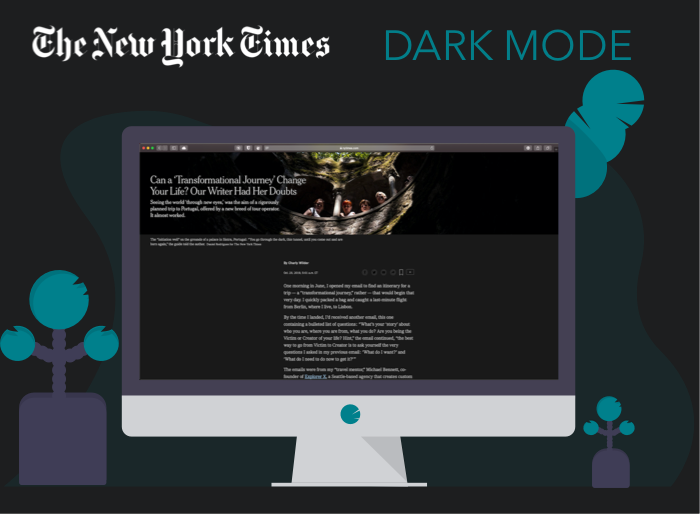
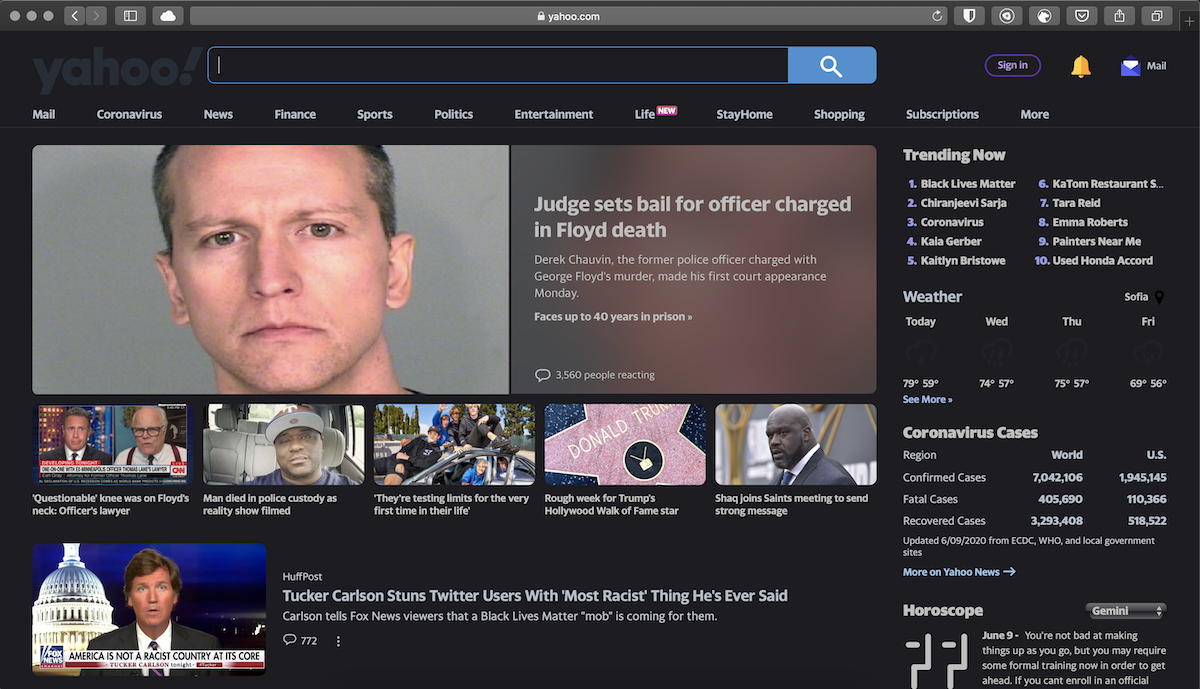
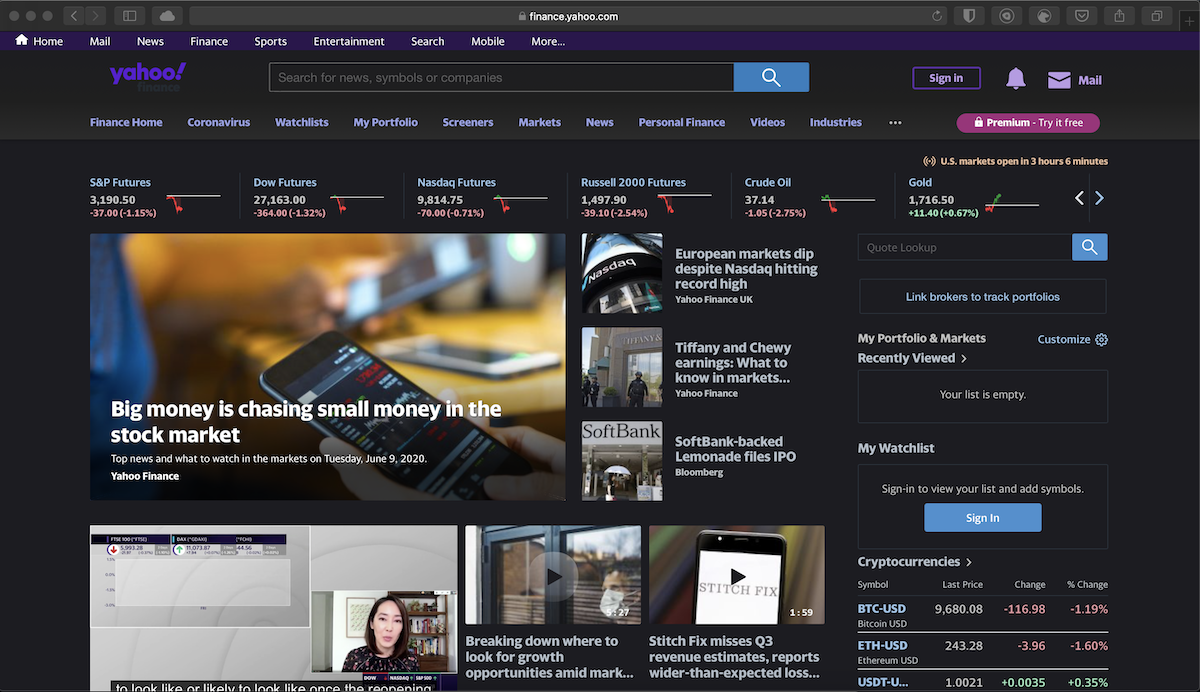
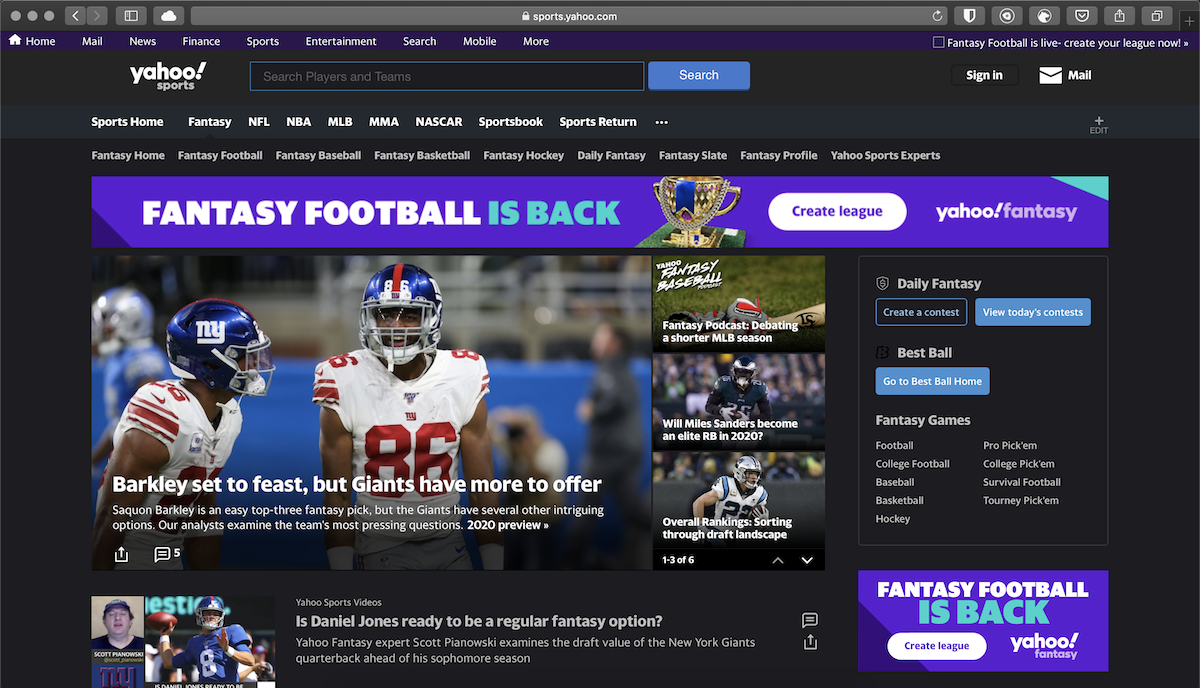
The four original screenshots below are preserved from this article's earlier version. They show real Yahoo pages with Night Eye applied, including older Yahoo Finance, Sports and Entertainment layouts. These are historical examples from 2020, not current before-and-after screenshots of Yahoo's homepage or search results. Yahoo's live interface may look different today.
To compare the current Yahoo homepage or search results yourself, open the same page twice and switch Night Eye from Normal to Dark. For accurate side-by-side images, both captures should use the same browser, window size and page content.

Yahoo News and Yahoo Sports dark mode
Night Eye can be used on Yahoo News and Yahoo Sports in supported desktop browsers. Open the website, select Night Eye's Dark mode and adjust the page to your preferred brightness and contrast. These websites do not necessarily share the same appearance controls as Yahoo Mail, Finance or Fantasy.
Possible limitations: article embeds, video players, advertisements, score widgets and image-based promotional panels may display differently from ordinary text and backgrounds. Live sports pages change frequently, so the result may vary by page. If a particular section remains bright or unreadable, refresh, try the available adjustments, use Normal mode for the affected page, or report the URL through Night Eye's built-in support.
Yahoo Fantasy dark mode on desktop
For the broader Yahoo Fantasy website in a desktop browser, Night Eye provides a customizable dark appearance. Open the Fantasy page, select Dark from the Night Eye toolbar and adjust the controls for standings, team pages or other supported screens.
Yahoo Fantasy's draft room also has its own dark mode. When you enter a supported live draft, open Draft Settings and select the Dark or Light view. This built-in control applies to the draft experience; do not assume it changes every Yahoo Fantasy page. Yahoo documents the setting in its draft-room help and announced light/dark support for the redesigned desktop draft experience.
For the separate Yahoo Fantasy mobile app, use the app's own appearance setting where available. See Yahoo's Fantasy app dark-mode instructions. A browser extension does not change the appearance of the native mobile app.
Dark mode in other Yahoo services
Yahoo Mail: New Yahoo Mail on desktop has a native option. Open Mail, choose More options > Settings > Appearance, then select Light, Dark or Automatic under Light/Dark mode and refresh the mailbox. Availability and layout can vary by account and region. See Yahoo Mail's official instructions. Night Eye is an additional option if you prefer customized browser-level controls.
Yahoo Finance: Finance also has built-in desktop theme settings. Open Yahoo Finance, select your profile icon > Appearance, choose Light mode, Dark mode or Device default, and confirm. See Yahoo's Finance help and the dedicated Yahoo Finance dark mode guide for a browser-extension alternative.
Yahoo mobile apps: Mail, Fantasy, Finance and other Yahoo apps may have different settings, and available options can depend on the app version or device. Follow the instructions for that particular app rather than expecting the desktop Night Eye extension to change it.
Yahoo dark mode: frequently asked questions
Does Yahoo have one dark mode setting for every service?
No. The Yahoo homepage, Search, Mail, Finance, Fantasy and the mobile apps can use different appearance controls. Night Eye offers a browser-based way to customize supported websites, while some individual services have their own native dark mode.
Can I turn dark mode off for only one Yahoo page?
Yes. In Night Eye, switch that page to Normal or use its website/page-specific settings. This can help when a particular embedded chart, video or interactive element does not display as expected.
Does Night Eye change the Yahoo mobile apps?
No. Night Eye changes supported web pages in supported browsers. Yahoo's native iOS and Android apps use their own theme controls, where offered.
Get customizable Yahoo dark mode
Use Night Eye to bring a dark, adjustable appearance to Yahoo's homepage, search results and other supported Yahoo websites on desktop. Choose your browser below or visit the official download page. You can also start with the step-by-step setup guide.