


To make the Brave browser interface dark, open Settings → Appearance and select a dark browser color scheme. This changes Brave’s tabs, menus and other browser controls, but it does not force every website to use dark colors.
To make websites dark in Brave, you can use Night Eye, a website dark mode extension with per-site adjustments. Brave also has an experimental option to force dark page rendering, but it can produce visual errors.
| What you want | How to do it |
|---|---|
| Dark Brave tabs, toolbar and menus | Settings → Appearance → choose the Dark color scheme. |
| Dark mode for websites in Brave | Install Night Eye from the Chrome Web Store; use its Dark mode for supported sites. |
| Try Brave force dark mode | Enable the experimental Auto Dark Mode for Web Contents flag, if your Brave version still offers it. |
| Return a website to its original colors | Choose Normal for that website in the Night Eye popup. |
1. Turn on Brave’s built-in dark theme
- Open Brave on your Windows, Mac or Linux computer.
- Click the main menu in the upper-right corner and select Settings.
- Choose Appearance, or enter brave://settings/appearance in the address bar.
- Under the browser color or theme settings, choose Dark. You can also choose the option to match your device’s color scheme if available.
Brave provides light, dark and device-matched appearance choices, along with additional color themes. Changing these settings affects the browser chrome—the tabs, toolbar, menus and supported internal pages. An ordinary website can still display a light background if it does not follow your device’s color preference.
For more on the built-in options, see Brave’s appearance guide.

2. Make websites dark in Brave with Night Eye
Brave’s theme does not recolor every webpage. If a news site, document, forum or work dashboard remains bright, Night Eye can convert supported webpage backgrounds, text and controls while letting you adjust each website separately.
- Open the official Night Eye listing in the Chrome Web Store using Brave.
- Click Add to Brave (the store may show a Chromium-specific installation label), review the permissions and confirm the installation.
- Open the website you want to view in dark mode. Night Eye uses Dark mode by default on supported websites. Refresh the tab if it was already open before installation.
- Click the Extensions puzzle-piece icon near Brave’s address bar, find Night Eye and open its popup. You can pin it for easier access.
- Choose Dark to convert the website, Filtered to keep its original colors while adjusting display filters, or Normal to restore the site’s original appearance.
- Fine-tune brightness or contrast for the current website if the result needs adjustment. Night Eye remembers your website-specific preferences.
The extension runs locally when converting page appearance. Night Eye does not collect your browsing history. For additional setup guidance, see the Night Eye installation guide.

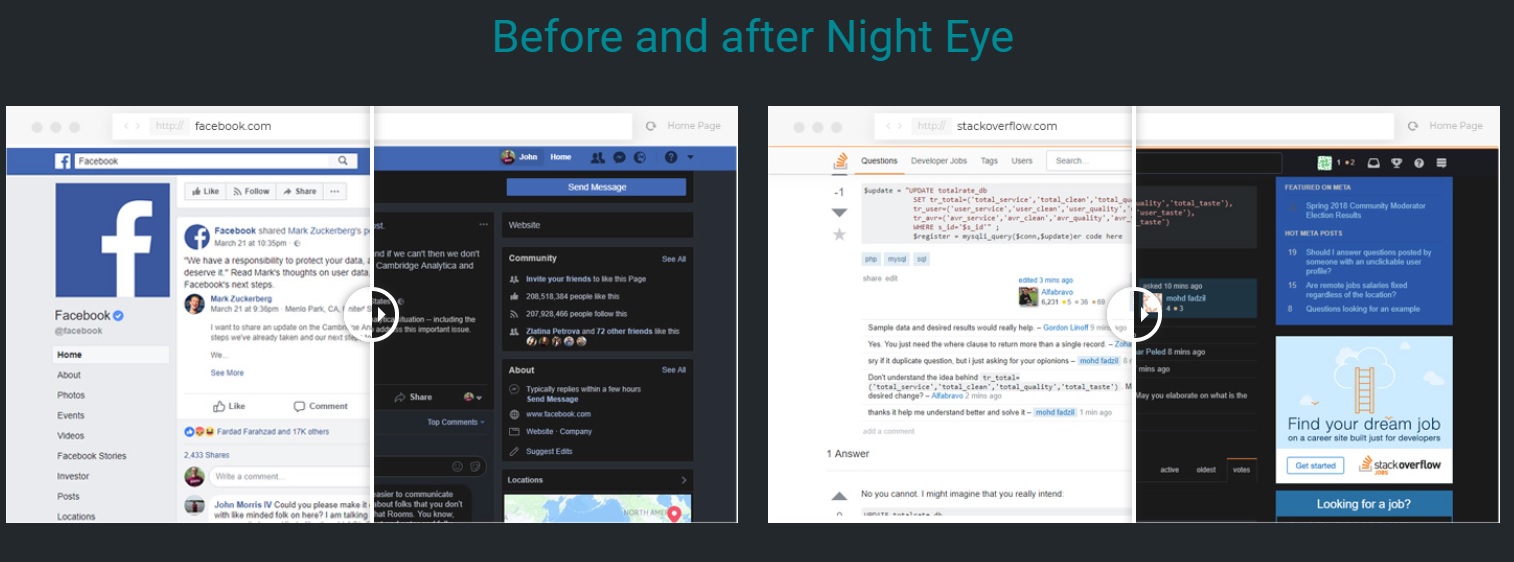
Brave website dark mode: example before and after
The change is on the webpage itself, not just Brave’s toolbar. On supported sites, Night Eye can replace bright backgrounds with dark tones and adapt text and smaller interface elements for readability. Photos and large media are generally left in their original colors, although results vary by website.
Adjust Brave dark mode for a specific website
You do not have to use exactly the same dark theme on every site. Open a site, click the Night Eye icon, and use its controls to change that site without changing your other websites.
- Brightness and dimming: reduce the intensity of a bright page or soften a converted dark theme.
- Contrast and saturation: adjust text separation and color intensity when the default appearance is not ideal.
- Warmth / blue light: shift the page toward warmer tones based on your preference.
- Dark, Filtered and Normal: fully convert a site, retain the original colors with filters, or leave the site untouched.
- Scheduling and device theme: automatically change the mode at selected times or use supported OS color-scheme integration.
- Site and subdomain controls: choose where dark mode applies, with optional custom CSS for advanced adjustments.
For example, you can leave a photo-editing website in Normal mode while keeping reading-heavy websites in Dark mode. If a page has its own well-designed theme, using its native theme or Night Eye’s built-in theme integration may work better than forcing another color conversion over it.

3. How to force dark mode on all websites in Brave
If your goal is to make bright webpages dark, there are two different approaches beyond changing Brave’s toolbar theme.
Option A: Use Night Eye for site-by-site control
Night Eye applies dark-mode conversion to supported sites and lets you keep exceptions in Normal or Filtered mode. This is the more flexible choice if you want to adjust contrast, brightness or individual websites without changing browser flags.
Option B: Try Brave’s experimental force-dark flag
Brave has provided an experimental Chromium setting named Auto Dark Mode for Web Contents. If it is present in your version:
- Enter brave://flags/#enable-force-dark in Brave’s address bar.
- Find Auto Dark Mode for Web Contents and change its setting to Enabled.
- Click Relaunch, if prompted, to restart Brave.
- Visit a normally light website and check the result.
Important: this is an experimental setting, not the same as Brave’s normal Appearance controls. It may not be available or may have different choices in your version. Some websites can display incorrect colors, weak contrast, or hard-to-read controls. If that happens, return the flag to Default or Disabled and relaunch. Avoid running force-dark mode and another automatic dark-mode tool together while troubleshooting a problem.
Brave dark mode not working? Fix common problems
Brave is dark but websites are still white
This is expected when you only enable Brave’s built-in browser theme. Use the website’s own dark theme where available, or enable Night Eye for website conversion.
Night Eye is installed but one page remains light
Refresh the tab, open the Night Eye popup and check that the site is set to Dark rather than Normal. Confirm the extension is enabled in brave://extensions. Extensions may not be able to recolor protected Brave pages or other restricted browser surfaces.
A website looks broken, has unreadable text or has unusual colors
Check whether the site already has its own dark mode or Brave’s experimental force-dark flag is also enabled. Use only one conversion method when testing. If necessary, switch Night Eye to Normal for that site or adjust its contrast and brightness.
Dark mode works on some websites but not others
Different websites use different layouts, embeds and native themes. Try refreshing the problem page, checking site-specific Night Eye settings, or using its built-in support to report a display issue.
The Night Eye icon is missing
Open Brave’s Extensions menu (puzzle-piece icon) and pin Night Eye to the toolbar. If you cannot find it, check brave://extensions to confirm it is installed and enabled.
How to turn off dark mode in Brave
- Turn off the browser’s dark theme: open Settings → Appearance and switch Brave to Light or your preferred system-matched appearance.
- Turn off Night Eye on one website: open the Night Eye popup on that site and select Normal. You can keep Dark mode enabled elsewhere.
- Turn off the experimental forced dark pages: open brave://flags/#enable-force-dark, select Default or Disabled, and relaunch Brave if the flag is present.
These settings are independent: switching Brave’s toolbar to Light does not necessarily turn off Night Eye, and selecting Normal in Night Eye does not change the browser’s theme.
Frequently asked questions
Does Brave have a built-in dark mode?
Yes. Brave offers a dark browser theme through Settings → Appearance. Websites may remain light unless they provide their own dark theme or you use a webpage darkening method.
Does Brave dark mode apply to every website?
Not automatically. Brave’s standard Appearance setting controls the browser interface. Night Eye is designed to darken supported websites, and Brave’s experimental force-dark feature can attempt conversion but may cause rendering problems.
Can I use Night Eye in Brave even though it comes from the Chrome Web Store?
Yes. Brave is a Chromium-based desktop browser and supports compatible Chrome Web Store extensions. Install Night Eye from its official store listing, review permissions and open its popup in Brave.
Which method should I use?
Use Brave’s built-in Dark theme if you only want dark tabs and menus. Use the website’s own theme when it is available and works well. Use Night Eye if you want to darken websites that stay light or need per-site customization. Treat the browser’s experimental force-dark flag as an optional test rather than a guaranteed solution.
Make Brave and your favorite websites dark
Start with Brave’s free built-in Dark theme for the browser interface. For bright webpages, Night Eye adds customizable dark mode with brightness, contrast, warmth and individual website controls. Choose the method that changes the part of your browsing experience you actually want to darken.
More about the Brave browser
Watch this additional Brave browser video if you would like to learn more about the browser itself.