









Night Eye is a WordPress dark mode plugin that adds a light/dark switch to the visitor-facing pages of your website. Visitors can choose a darker appearance without installing a browser extension. Site owners can control the switch position and, with a Pro option, customize the dark colors and schedule when dark mode is offered.
The plugin changes the public website (front end), not the WordPress admin dashboard. Start with the free plugin, then decide whether advanced customization and branding-free presentation are necessary for your site.
Want to try it on your site? Install the free WordPress plugin from the official directory. No browser-extension subscription is required for your visitors.
Watch the WordPress Dark Mode Demo
See the Night Eye switch and how a WordPress page appears in dark mode. The existing walkthrough is retained here; on-screen controls may differ from those in the installed plugin version.
WordPress Dark Mode Screenshots
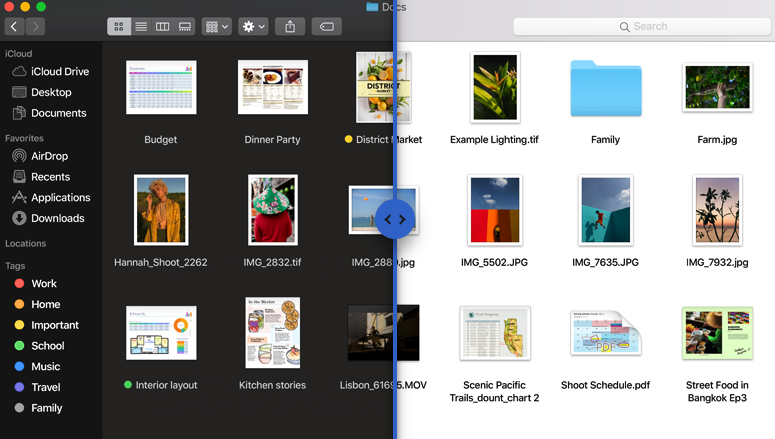
These existing examples show the visitor toggle and dark-mode results. To compare the exact effect on your website, capture the same page in light and dark mode after installation, with identical viewport and content.


Existing screenshots: Night Eye switch and a dark-mode website example. Results depend on the site theme, CSS and content.


More existing dark-mode examples. Check headings, background colors, images and navigation on your own WordPress site before launch.
How to Install the Night Eye WordPress Dark Mode Plugin
Use a staging copy if your site has a heavily customized theme or business-critical forms. WordPress.org currently warns that the plugin has not been tested with recent major WordPress releases, so verify compatibility with your particular setup before enabling it in production.
- In your WordPress admin dashboard, open Plugins → Add New Plugin.
- Search for Night Eye – Dark Mode Plugin, select Install Now, then Activate. You can also find it on the official WordPress plugin page.
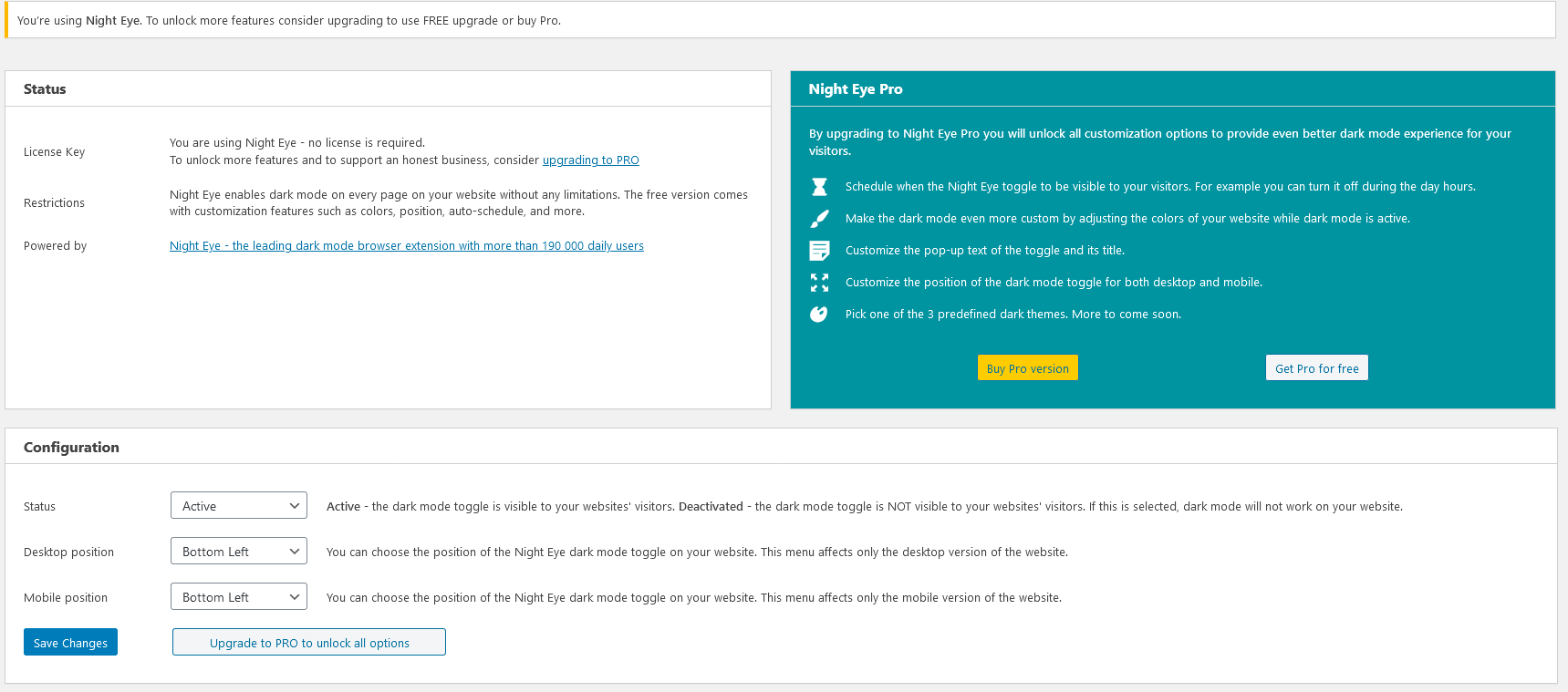
- In the admin sidebar, open Night Eye → Configuration and set the plugin status to Active.
- Set the preferred switch position separately for desktop and mobile, then select Save Changes.
- Visit a public page, click the moon-shaped toggle, and check the page in both light and dark mode. Repeat on a mobile device.
The free version is sufficient to offer the public dark-mode switch. The admin dashboard itself remains unchanged.
What the Settings Look Like
The original free and Pro settings screenshots are preserved below. They are historical reference images; verify the labels against the version installed on your site.

How to Install Night Eye Pro or Pro Free
The Pro editions use a separate download process:
- Open the Night Eye WordPress plugin portal and create or access your account.
- Register the domain on which you will use the plugin. The current help guide describes one domain per Pro account.
- Select Pro (paid, without referral branding) or Pro Free (free, with Night Eye branding).
- Download the ZIP and do not rename or unzip it.
- In WordPress, open Plugins → Add New Plugin → Upload Plugin, choose the ZIP, then install and activate it.
- Configure the new version and test the public-facing website. Avoid running overlapping dark-mode plugins at the same time.
For account and setup guidance, see the official Night Eye WordPress help page.
Customize Dark Mode on Your WordPress Website
Free: Control the Visitor Toggle
Enable or disable the floating dark-mode switch and choose where it appears on desktop and mobile. Visitors can use it to move between light and dark appearances.
Pro and Pro Free: Colors, Presets and Scheduling
Both Pro editions add the same advanced controls described in the Night Eye documentation:
- Three predefined dark themes: Pitch dark, Normal dark and Day dark, selected from the Dark theme setting.
- Color adjustment: edit foreground and background color choices, then save changes.
- Schedule: in Configuration, select the timer-based behavior and specify the active hours. The plugin documentation also describes an option to hide the switch outside those hours.
- Toggle copy: customize the title and text in the switch popup.
Test each preset and custom color against your branding before using it on a live site. The appearance of images and interactive components should be reviewed rather than assumed.
What Happens to Logos, Images, Forms and Menus?
Night Eye converts website colors rather than only applying a blanket color inversion. However, results depend on how your theme and plugins render their elements.
- Logos: check dark text and transparent logos on the new backgrounds; use an alternate logo or theme-specific styling if needed.
- Images and galleries: inspect photos, illustrations, charts and overlays in both modes, including their captions and surrounding backgrounds.
- Forms: test input text, placeholders, labels, borders, validation messages and submit buttons for contrast and usability.
- Menus: verify desktop dropdowns, mobile navigation, sticky headers and open/close states.
Dark mode should remain an accessible choice, not a mandatory replacement for the original light appearance.
Night Eye WordPress Plugin Pricing: Free vs. Pro Free vs. Pro
These are WordPress plugin plans, not Night Eye browser-extension subscriptions. The three options currently described in the WordPress directory are:
| Feature | Free | Pro Free | Pro |
|---|---|---|---|
| Price | $0 | $0 | $40 one-time |
| Visitor light/dark toggle | Yes | Yes | Yes |
| Desktop/mobile switch placement | Yes | Yes | Yes |
| Dark presets and custom colors | — | Yes | Yes |
| Dark-mode scheduling | — | Yes | Yes |
| Custom toggle popup text | — | Yes | Yes |
| Night Eye footer link and toggle branding | Not described as required | Required | Not included |
Which plan should you choose? Start with Free if you need only the visitor toggle. Choose Pro Free for the advanced controls if you accept a footer referral link and a small Night Eye message in the toggle. Choose paid Pro if you want the advanced settings without that branding. Night Eye currently lists Pro at $40 once, for one domain.
Check the WordPress plugin listing and the Night Eye plugin portal for current plan terms.

What Branding Is Included with Pro Free?
Pro Free includes the same advanced feature set as paid Pro, but it adds a Night Eye referral link in the website footer and a small Night Eye promotion in the dark-mode switch. Paid Pro removes both. The screenshots below show these two placements.


WordPress Dark Mode Troubleshooting
The Dark-Mode Toggle Does Not Appear
Check that Night Eye is activated in Plugins and that Night Eye → Configuration → Status is set to Active. Save your settings, clear the website/cache-plugin cache, and look for the toggle on desktop and mobile. Check whether a sticky widget or overlay covers it.
Some Text, Images or Menus Look Wrong in Dark Mode
Compare the affected element in light mode. If you have Pro, try a different dark preset or adjust foreground/background colors. Inspect custom CSS, dark logos, form inputs and menus. If another dark-mode tool is active, disable the overlapping behavior while testing.
Changes Are Not Visible After Saving
Refresh the front end and clear any page cache or CDN cache. Try a private browsing window. For complex themes, test on staging without CSS/JavaScript optimization to isolate a conflict, then restore optimizations one at a time.
Dark Mode Is Not Following the Schedule
In the Pro configuration, verify that timer-based behavior is enabled and that the expected active hours are saved. Review any setting that hides the toggle outside the active interval. Test during both an active and an inactive interval.
Still having trouble? See the WordPress plugin help guide or contact Night Eye support. Include your plugin version, WordPress version, theme, browser and a screenshot of the affected page.
Frequently Asked Questions
Does Night Eye change the WordPress admin dashboard?
No. This WordPress dark mode plugin is for your public-facing website. It does not add a dark theme to the WordPress administration interface.
Do website visitors need the Night Eye browser extension?
No. Once you enable the WordPress plugin, the website presents its own dark-mode switch. Visitors do not need to install anything.
Is the WordPress dark mode plugin free?
Yes. The basic plugin is free. Pro Free adds advanced features with a Night Eye footer link and a small promotion in the toggle. Paid Pro currently costs $40 one-time and removes those branding placements.
Is Night Eye the same as the “WP Dark Mode” plugin?
No. WP Dark Mode is a separate WordPress plugin by WPPOOL. Night Eye is a different WordPress dark mode plugin, available at wordpress.org/plugins/night-eye/.
Will dark mode automatically work with every theme and plugin?
No universal compatibility claim is appropriate. Test your theme, logos, navigation, forms and essential user journeys with the exact versions installed on your site.
Add a Dark-Mode Toggle to Your WordPress Website
Install Night Eye Free to try the visitor-facing light/dark switch. Then check your site in both modes and choose Pro Free or Pro only if you need the added customization options.