


Opera has three different ways to get a darker browsing experience: a dark browser interface, Opera GX’s built-in website darkening, and the Night Eye extension. They change different parts of what you see.
| Dark mode option | What it changes | How to use it |
|---|---|---|
| Opera dark theme | Browser interface, including tabs and the address bar; websites can remain light. | Open Easy Setup → Themes. For a straightforward dark interface, choose a dark appearance in the Classic theme. |
| Opera GX Force Dark Pages | Website backgrounds and other page elements, using GX’s built-in conversion with site exceptions. | Open Easy Setup → Features → Force dark pages or use GX Settings. |
| Night Eye for Opera and Opera GX | Supported websites, with controls for brightness, contrast, saturation, warmth, dimming and individual site preferences. | Install Night Eye, open a website and use the Night Eye popup to customize it. |
Which should you choose? Use Opera’s own theme if you only want dark tabs and menus. Opera GX’s Force Dark Pages may be sufficient if you simply want darker websites. Choose Night Eye when you want finer control over individual sites, or want the same website settings across Opera and other supported browsers. You do not need Night Eye just to make the Opera interface dark.
On this page
- How to install the Night Eye dark mode extension in Opera
- How to use Night Eye in Opera GX
- Customize dark mode from the Night Eye popup
- Dark mode before and after: what website conversion changes
- Troubleshooting Night Eye in Opera and Opera GX
- Night Eye, Opera GX Force Dark Pages and Dark Reader compared
- Frequently asked questions
How to install the Night Eye dark mode extension in Opera
The following installation route uses the official Night Eye listing in the Chrome Web Store. Opera supports compatible Chrome extensions, although its confirmation screens and button labels can differ from Chrome.
- Open Opera on your Windows, macOS or Linux computer.
- Open the Night Eye store listing from the button above.
- Choose the installation button shown in your browser. Opera documentation refers to Add to Opera; the current Chrome Web Store may display Add to Desktop or another browser-specific label. Follow the on-screen install or permission confirmation rather than relying on an older screenshot.
- Complete Opera’s extension confirmation, if its Extensions manager opens and asks you to select Install.
- Open a website, such as Pinterest, and refresh an already-open tab once. Night Eye starts in Dark Mode on supported pages.
- Open the Night Eye popup by selecting its toolbar icon. If it is hidden, open the Extensions menu and pin Night Eye for quick access.
Installation not offered? Opera’s extension documentation also describes installing its Install Chrome extensions helper from Opera Add-ons before adding a Chrome Web Store extension. Use that route if your Opera build requires it. The old screenshots below show an earlier Opera interface; your current labels may look different.


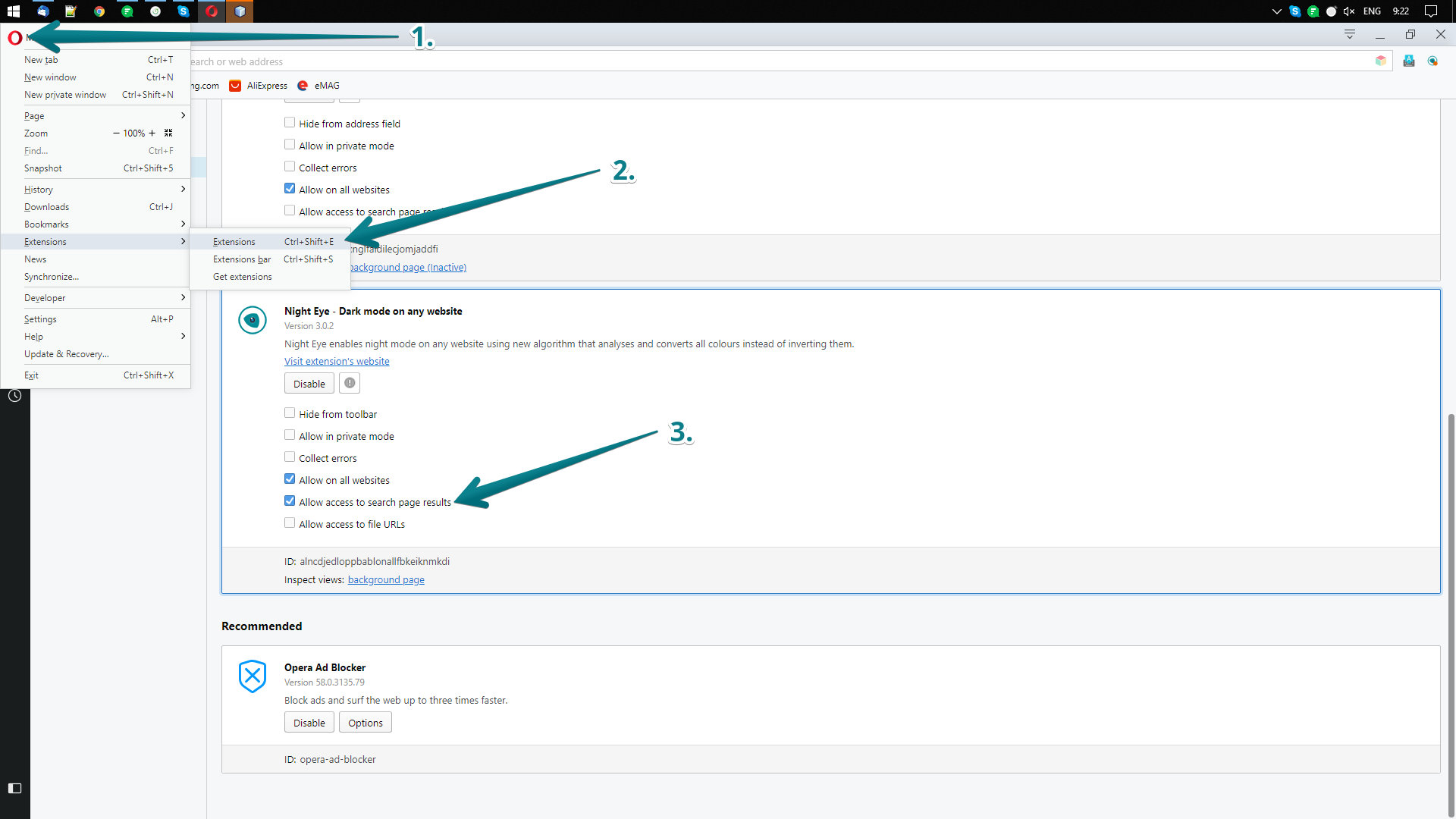
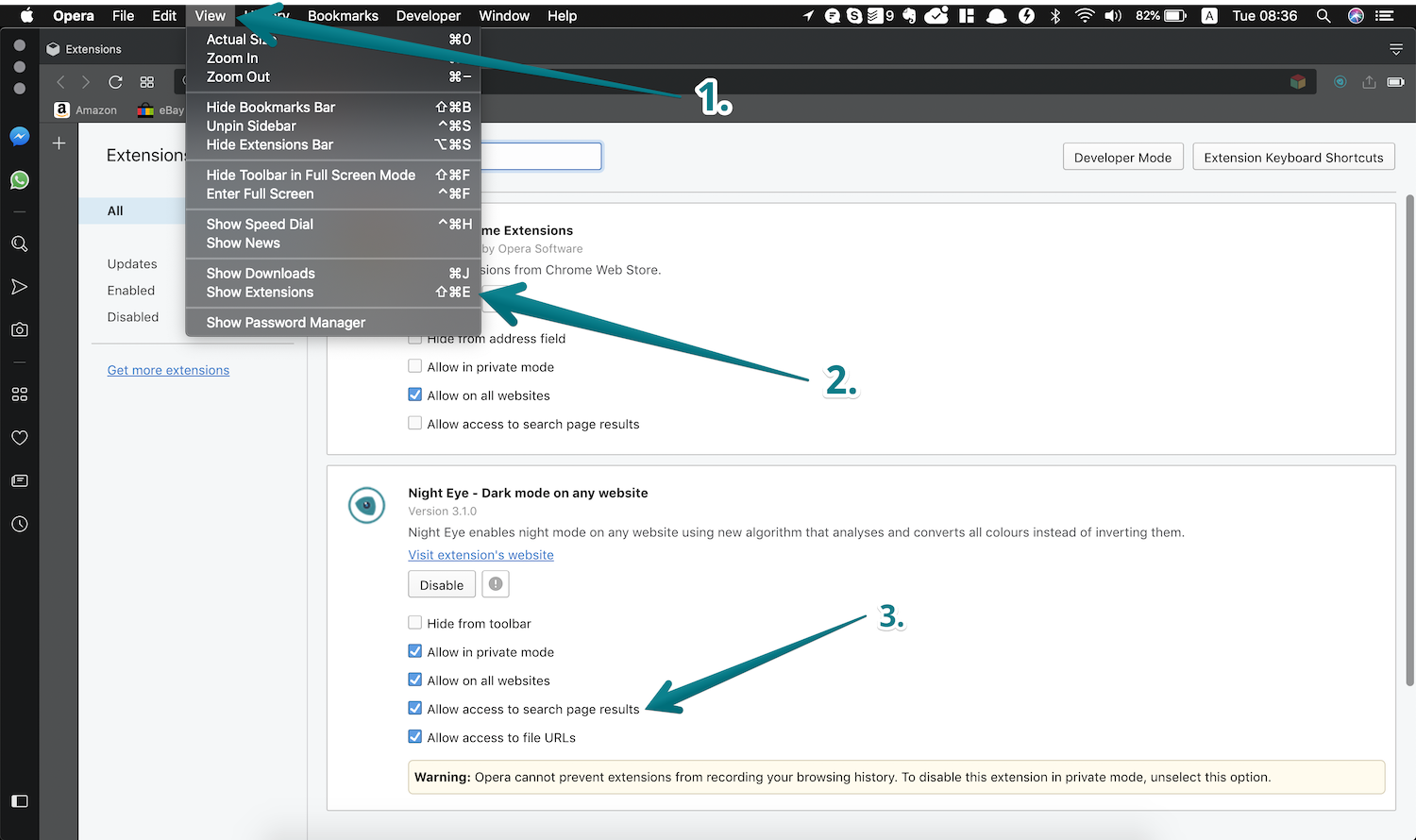
To manage the installation later, open opera://extensions/. You can also use Ctrl + Shift + E on Windows or Linux, or Command + Shift + E on macOS. The Extensions manager is for enabling or removing the add-on; the Night Eye toolbar popup is where you change how websites look.
How to use Night Eye in Opera GX
Opera GX already has a website darkening feature: Force Dark Pages. It can apply a darker appearance across sites or only to a custom selection. Night Eye is an alternative for users who want more detailed visual adjustments and website-specific settings.
- Open Opera GX and install Night Eye using the same Chrome Web Store process as above.
- Open Easy Setup in the top-right corner. Under Features (sometimes shown as GX Features), find Force dark pages.
- For a clean comparison, turn off Force dark pages first. If you normally keep the GX feature enabled, use the adjacent site-exceptions control to disable it on the website you are testing instead.
- Visit that website, refresh it, and open the Night Eye toolbar popup. Select Dark Mode and adjust the page to your preference.
- Keep just one website-color conversion tool active on the same page when comparing results. Re-enable Force Dark Pages for sites on which you prefer GX’s own conversion.
If the page has inverted images, strange background colors or unreadable controls, check the GX Force Dark Pages setting and any other dark-mode extensions before changing Night Eye’s filters. Switching off one converter often makes it easier to identify the source of the problem.
Customize dark mode from the Night Eye popup
Click the Night Eye icon beside the address bar while a website is open. You do not have to return to Opera’s Extensions manager each time you want to change the page.
| Control | When to use it |
|---|---|
| Dark Mode | Converts bright page backgrounds and interface elements into a darker appearance. |
| Filtered Mode | Preserves the website’s existing color scheme while allowing visual adjustments such as brightness, contrast, warmth and dimming. |
| Normal Mode | Disables Night Eye’s changes for that website and shows its original appearance. |
| Brightness and dim | Adjust the overall intensity of the webpage when the default dark mode still feels too bright. |
| Contrast and saturation | Refine text separation or reduce strong interface colors; make small adjustments so labels and buttons remain legible. |
| Website controls | Apply preferences globally or only to the current site, and choose sites or pages that should remain unchanged. |
Night Eye also supports scheduling, OS color-scheme integration, site and supported subdomain preferences, a warmth/blue-light control, and custom CSS for advanced adjustments. A website with its own native dark theme may already look right; you can leave that site in Normal Mode or use supported native-theme integration rather than converting it twice.
Privacy: Night Eye performs page-color analysis and conversion locally. It does not collect browsing history as part of that process. Browser permission to read and change website content is needed to apply the visual transformation. See the Night Eye privacy policy for the complete policy.
Dark mode before and after: what website conversion changes
These existing Night Eye screenshots show a light Grammarly web editor and an example of the same type of page after conversion. Notice the move from a large white editing area to dark surfaces while the main controls and sidebar remain visible. They are an older website example, not a new Opera or Opera GX test; the live Grammarly interface may have changed.

Before: original light website appearance

After: Night Eye website dark mode example
Try the same comparison on Pinterest in Opera or Opera GX
- Open Pinterest in Opera. From the Night Eye popup, choose Normal Mode to see the original website design.
- Change to Dark Mode. Compare the page background, navigation, board descriptions, search field and pin detail panels. Photo and video content should be checked separately from interface colors.
- Adjust brightness and contrast in small increments; if the interface feels too vivid, try the saturation control. Set those adjustments just for Pinterest if you want other websites unchanged.
- Open a board and an individual pin, then check buttons, text and overlays. If any element loses contrast or an image looks altered, try a different setting, switch that page to Normal Mode or contact Night Eye support.
What to expect: Night Eye is designed to modify page backgrounds, text and interface elements rather than indiscriminately recolor large photographs. Results can vary as sites update their designs, and isolated elements may need an exception or adjustment. The Grammarly images above illustrate the difference; they do not establish that every Pinterest view has been tested or will look identical.
Troubleshooting Night Eye in Opera and Opera GX
Google search results are still light
Opera has a separate extension permission for search-result pages. Only when Night Eye is not changing Google Search results, open opera://extensions/, find Night Eye and enable Allow access to search page results, then reload Google. This permission is not a required setup step for every website. On Windows or Linux, open Extensions with Ctrl + Shift + E; on Mac, use Command + Shift + E. The retained screenshots below show the general extensions-management process in older Opera versions.
A page stays white or Night Eye appears inactive
Refresh the tab if it was open before installation. Confirm Night Eye is enabled in opera://extensions/, check that the site is not set to Normal Mode or excluded, and try a regular webpage rather than an internal browser page. Some restricted pages and certain embedded or dynamically rendered content may not be modifiable by an extension.
Colors look wrong in Opera GX
Disable Force dark pages for that site (or globally as a quick test), then reload it. Also avoid running Night Eye and Dark Reader together on the same page. If a website supplies its own dark mode, try switching between the site’s theme and Night Eye rather than layering several conversion methods.
How to go back to light mode
In the Night Eye popup, select Normal Mode for that website. For Opera’s own interface, open Easy Setup and select the appropriate light appearance. In Opera GX, turn off Force dark pages if you also want websites to return to their original colors.
The layout, images or text look incorrect
Restore the default Night Eye adjustments, then change one control at a time. Try Normal Mode on a problematic page. For persistent issues, open Night Eye’s built-in support from its popup and provide the URL and a screenshot, or consult the Night Eye Help Center.
Night Eye, Opera GX Force Dark Pages and Dark Reader compared
All three options can help darken websites, but they are not identical:
| Tool | Main approach | Useful distinction |
|---|---|---|
| Opera GX Force Dark Pages | Built-in website darkening. | Convenient without an extension; supports global and site-specific controls. |
| Night Eye | Website conversion with multiple display modes and controls. | Includes brightness, contrast, saturation, warmth, dimming, scheduling and website/page-level settings. |
| Dark Reader | Third-party website dark-mode extension. | Open-source alternative with brightness, contrast, theme and per-site options. Avoid enabling it alongside another converter on the same page. |
If you already use Opera GX’s built-in feature and like the result, there is no requirement to install anything else. Night Eye is worth trying when you want separate settings for sites such as Pinterest, more appearance adjustments or the option to switch between full conversion and less intrusive filtering.
Frequently asked questions
Does Opera have a built-in dark mode?
Yes. Opera has light and dark interface themes. The dark browser theme does not necessarily darken the websites you visit. Opera GX additionally documents Force Dark Pages for website conversion.
Does Night Eye work in both Opera and Opera GX?
Night Eye is distributed through the Chrome Web Store and is intended for compatible Chromium-based browsers, including Opera and Opera GX. Installation steps may vary by browser build and extension-store interface. Use the current store listing and complete the prompts shown in your browser.
Can I make only certain websites dark?
Yes. Night Eye supports preferences for the current website, global defaults, and allow/disallow controls. You can use Dark Mode on one site and keep another in Normal Mode.
Is Night Eye free?
Night Eye Lite provides a free option for up to five websites. Paid plans are also available; check Night Eye’s current plan information for limits and terms.
For official instructions, see Opera’s customization and extensions guide, Opera GX Force Dark Pages, and the Night Eye Help Center.