


You can schedule dark mode with Night Eye to turn on and off automatically at specific times. For example, you can enable Dark Mode at 20:00 and return websites to their normal appearance at 08:00. This lets you browse with a dark theme in the evening without manually switching modes every day.
To schedule dark mode, open Night Eye, go to Settings, select Schedule, and choose when you want Dark Mode to start and stop.
To schedule dark mode, open Night Eye, go to Settings, select Schedule, and choose when you want Dark Mode to start and stop.
How to schedule dark mode with Night Eye
Set your dark mode schedule
1. Open the Night Eye extension.2. Open Settings.
3. Find Schedule.
4. Choose the hours when you want Night Eye to use Dark Mode.
Once the schedule is enabled, Night Eye can switch between Dark Mode and the website's normal appearance automatically according to the times you selected.

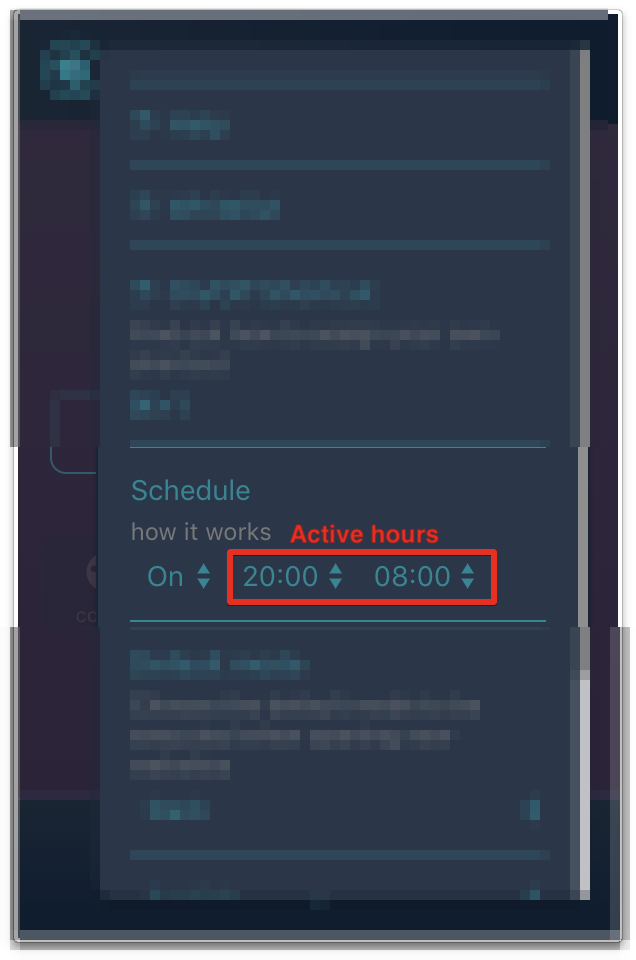
How the dark mode schedule works
If you set the schedule from 20:00 to 08:00, Night Eye will automatically use Dark Mode during that period. At 20:00, Dark Mode turns on. At 08:00, websites return to their normal appearance.The schedule can run overnight, so the start time does not need to be earlier than the end time on the same calendar day. This is useful if you want dark mode throughout the evening and night, then want websites to return to their normal appearance in the morning.
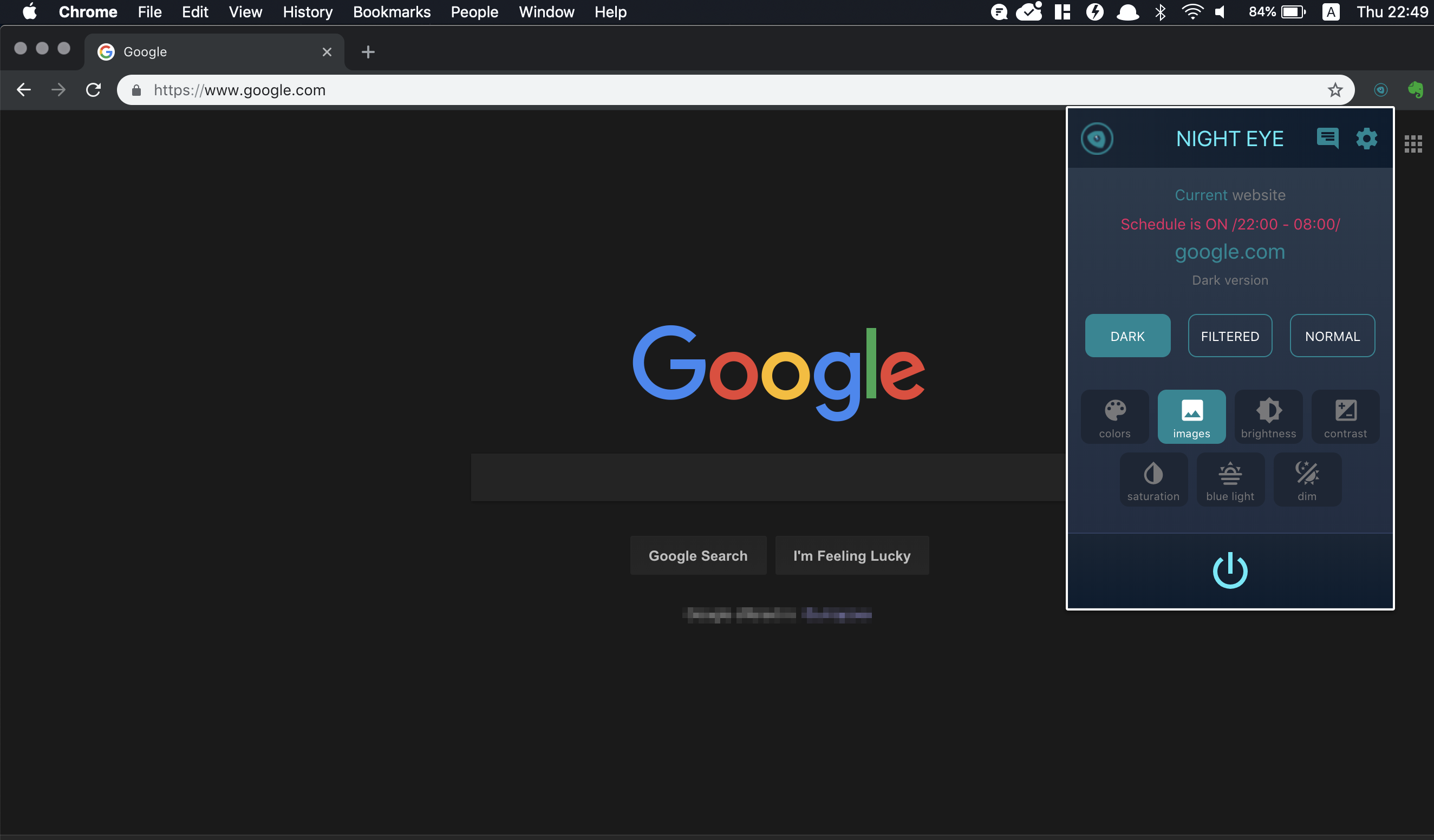
Schedule vs. OS/Browser integration
Night Eye offers more than one way to automate dark mode. Schedule uses fixed start and end times that you choose. OS/Browser integration follows the color scheme used by your operating system or browser.If both Schedule and OS/Browser integration are enabled, OS/Browser integration takes precedence. If you want Night Eye to follow only your custom time schedule, disable OS/Browser integration in Settings.
Which automatic dark mode option should you use?
Choose Schedule if you want Dark Mode to activate at the same hours every day, such as from 20:00 to 08:00.Choose OS/Browser integration if you want Night Eye to follow your device or browser appearance automatically.
If you prefer to decide manually when websites should appear in Dark Mode, you can leave both automation options disabled and control Night Eye directly from the extension.
How to turn off the dark mode schedule
To stop Night Eye from switching modes automatically at scheduled times, open the extension, go to Settings, find Schedule, and disable it. You can enable the schedule again whenever you want.Can you use Dark Mode outside scheduled hours?
If you need Dark Mode outside the hours you normally use, you can control Night Eye manually from the extension. If your manual change affects the active schedule, check the Schedule setting afterward to make sure it is still configured the way you want.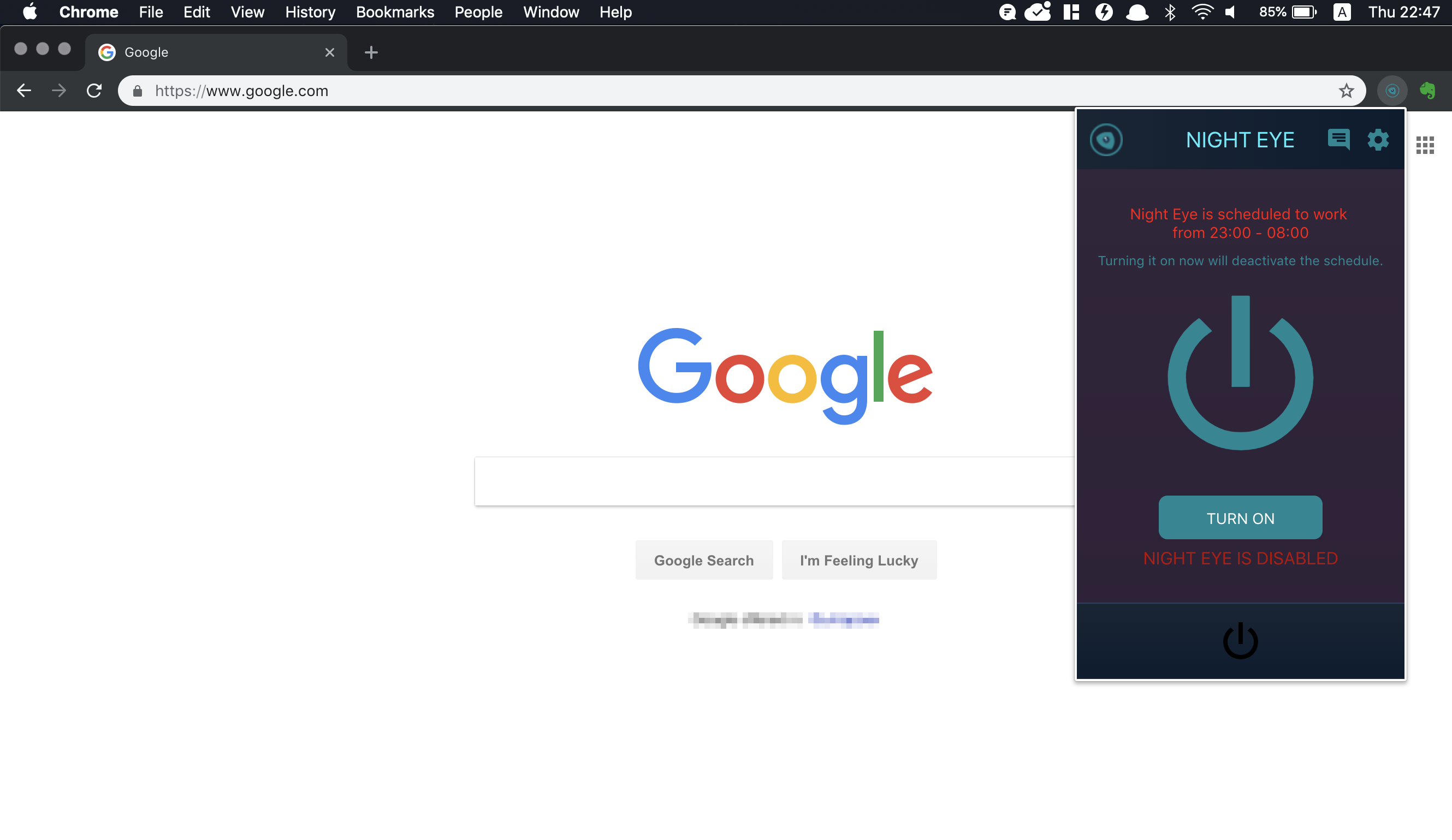
Dark mode schedule not working?
If Night Eye does not switch modes when you expect it to, check the following:1. Make sure Schedule is enabled in Settings.
2. Check that the start and end times are correct.
3. Check whether OS/Browser integration is enabled and overriding the schedule.
4. Reload the affected website if it was already open when the scheduled mode changed.
5. If the issue continues, contact Night Eye support from the extension and include your browser and Night Eye version if possible.